

An introduction to bash aliases

Hey, there! I'm a noob.
Now, I'm not winning any competitions for "bearer of the longest name" but my name is long enough that most people don't wanna have to call me the whole thing every time they'd like to get my attention. My name's Fortunatus. So people give me nicknames. And they get creative with this. They
shorten it: "Fortune", "Fortunate", "Fortch"—easy, straightforward.
cut out parts of it: "For-natus", "For-tus"—weird but okay.
just... distort it in all sorts of ways: "Fortunality" (even longer, no?), "Atus", "Flourish", "Festus"¹—you get the point.
Thing is, no matter what they choose, as long as I'm aware they're referring to me, I answer. Every time. Those names they call me are effectively my aliases, i.e., other names I go by or... respond to or... am known as.
Where I'm going with all this babble is shells (the thing that runs in terminals like the one in the image below) have this same feature.
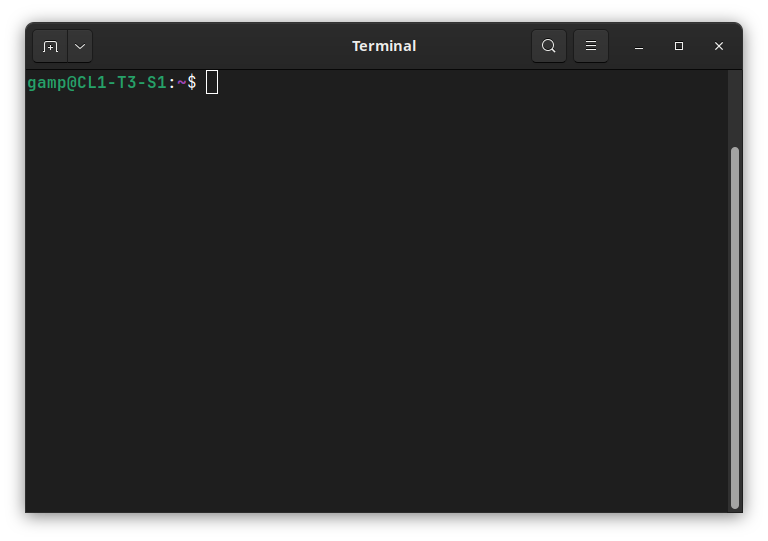
If you didn't already know about this, chances are you're a noob too. So you're in the right place. If you already did know about this, well, thanks for reading this anyway. You're in... a place.
about shell aliases
Most modern, interactive shells allow you to set whatever aliases for whatever available commands you want.
So if you ever feel like a command is too long to have to type out every time you need it, or if you notice there's a command you use a LOT, you can give it your own alias. You can actually even combine commands and give them all together an alias so you can run multiple operations with as few keystrokes as you want.
giving your commands nicknames
Let me first say that I think you should definitely use your terminal for this, not your GUI. It's a good habit to get into. (Not to mention, it's frickin' cool).
Go to your home directory (or folder):
cd ~.cdis the command used to change your working directory~is itself an alias for your home directory².
Open a file named
.bash_aliases:You can do this with
touch .bash_aliasesornano .bash_aliasesorvim .bash_aliases(if you've gotviminstalled) or you could just use any text editor you have. You just need to be able to create and/or write into a file named.bash_aliases.The dot (
.) in front of the name denotes that the file is a hidden file. Also, notice that it has no extension, i.e., no.txtor.pdfor.shat the end of the filename. None of that.
In this file, you're gonna use the format:
alias <shortcut>='long command'to set your own aliases. e.g.alias updg='sudo apt update && sudo apt upgrade -y'alias ..='cd ..'(to go back/up one directory)alias ...='cd ../..'(to go up two directories)
You can always edit the file to set new aliases or remove ones you don't wanna use anymore.
Now, we've gotta make sure your
.bashrcfile is set to always load your.bash_aliasesfile.Your computer already knows to load your
.bashrcfile every time you open a terminal window.To make sure our
.bash_aliasesgets loaded like that too, we've just gotta edit your.bashrcfile to make sure your.bash_aliasesfile gets read every time.bashrcgets read. That way, your shell just loads that file too when it loads.bashrc.To open the
.bashrcfile, you've gotta head to your home directory (if you aren't already there) and open it using a text editor like before. (Be careful here. This is a VERY important file and you do not want to mess it up. Believe me.)Put these lines at the very end of the file. Save and close it:
if [ -f ~/.bash_aliases ]; then
    . ~/.bash_aliases
fi
Now, when your computer loads
.bashrc, it checks if.bash_aliasesexists and, if so, reads it and applies the shortcuts inside.
Now, you can use one of these two options to actually see your aliases in action:
Use
source ~/.bash_aliasesto make your terminal recognise them immediately. Note that they'll only be loaded within that particular window/session, so this is a great option for testing your aliases.Close and reopen your terminal and you'll see the aliases already in effect. This is because the
.bashrcfile is loaded every time you open a terminal/start a new bash session, which loads your.bash_aliasesfile.
explore the iceberg a bit more
Now, you've got a lot more options when it comes to creating and managing aliases. I merely covered the tip of the iceberg here. For example, you can chain commands in an alias like so:
alias wakeup='chromium >/dev/null 2>&1 & spotify >/dev/null 2>&1 & code .'
That opens Chromium (the browser), Spotify, and VS Code all at once with the alias wakeup. I use it to open all the essential apps I use when I first turn on my computer. Makes me feel like Tony Stark.
If you want a deeper understanding of that alias so you can adapt it for yourself or use it to come up with something better (cos, yes, you can take it up a notch still), you can talk to an AI (Claude, ChatGPT, Gemini, Perplexity, whatever suits you).
Footnotes
¹ this one gets me every time. yeah, an "F", a "tus", BOOM! 💥 you're "Festus".
² your home directory is the base directory where all of your personal files and folders are stored. The path to it looks something like this on Linux: /home/your_username.


